Free Image and PDF Tools That Never Upload Your Files: The Complete 2026 Guide to DailyCompressor
Free PDF and image tools that don't upload your files process everything inside your browser, so nothing leaves your device. This guide covers DailyCompressor's 29 free tools for converting, editing, compressing, and resizing images and PDFs. It explains the file limits, the five on-device AI tools, and how to check for yourself that no file is ever uploaded.
Free PDF tools that don't upload files process each file inside your browser, so it never leaves your device. DailyCompressor runs 29 of these tools for images and PDFs, free, with no signup, no watermark, and no daily limit.
Upload-based converters send your file to a server and keep it for a stated window, often one to two hours. A browser tool skips that step entirely.
DailyCompressor handles images up to 25 MB and PDFs up to 100 MB, and you can confirm the no-upload claim yourself in about a minute with your browser's Network tab.
| Category | What it does | Start with |
|---|---|---|
| Convert (14) | Changes image, animation, and document formats | Image Converter |
| Edit (7) | Crops, stamps, and cleans photos and PDFs | Image Cropper |
| Resize (1) | Sets exact pixel dimensions | Image Resizer |
| Compress (3) | Shrinks images, GIFs, and PDFs | Compress PDF |
| AI (3) | Removes backgrounds and watermarks, upscales photos | AI Background Remover |
| Extract (1) | Pulls text out of images | Image to Text (OCR) |
How Free Image and PDF Tools Work Without Uploading Your Files
Free image and PDF tools work without uploading by reading your file into browser memory, changing it there, and saving the result as a download. The web page delivers the tool's code once. After that, your device does the work.
This model is called client-side processing. DailyCompressor builds all 29 tools on it, so no tool has an upload step to switch off.
Images Are Processed by the Browser's Canvas API
The Canvas API lets the browser decode an image, edit its pixels, and encode it again in a new format. Every modern browser ships with it, on desktop and on mobile.
A typical image job takes three steps:
- Decode: the tool reads your file into raw pixels in RAM.
- Edit: the tool crops, resizes, rotates, or recolors those pixels.
- Encode: the browser writes the pixels into JPG, PNG, WebP, or AVIF and hands you a download.
DailyCompressor uses this path for conversion, cropping, resizing, watermarking, and image compression.
WebAssembly Runs the Heavy Jobs
WebAssembly runs compiled engines such as FFmpeg and Tesseract inside the browser at a speed close to desktop software. Code written in languages like C and C++ becomes a compact binary that the browser runs inside its security sandbox.
DailyCompressor uses WebAssembly for GIF to MP4 and Image to Text. Its three AI tools follow the same on-device approach with models that run in the tab.
Where Your File Lives During Processing
Your file lives only in the memory of the open tab, and it disappears when you close that tab. The result goes to your Downloads folder like any other download.
| Item | Where it lives | How long it stays |
|---|---|---|
| Your original file | Tab memory | Until you close the tab |
| The finished result | Your Downloads folder | Until you delete it |
| AI model or encoder (5 tools) | Browser cache | Until you clear site data |
| A copy on a server | Nowhere | Never created |
The cached model holds no part of your files. It is the same for every visitor.
Are Free Online PDF and Image Tools Safe to Use?
Free online PDF and image tools are safe when your file never leaves your device. Upload-based tools send each file to a server and keep it for a stated window, often one to two hours. DailyCompressor processes every file in your browser instead.
The risk with an upload-based tool is rarely the conversion itself. The risk is the copy of your file that exists somewhere else, for a time you cannot check.
What Happens to a File on an Upload-Based Tool
An upload-based tool moves your file through four stages: transfer, server processing, temporary storage, and deletion.
| Stage | Where your file is | What you control |
|---|---|---|
| 1. Transfer | Crossing the internet to the provider | Only that the connection is encrypted |
| 2. Processing | On the provider's server | Nothing |
| 3. Storage | Kept for a stated window, often 1 to 2 hours | You trust the policy |
| 4. Deletion | Removed on the provider's schedule | You cannot confirm it |
DailyCompressor removes all four stages. It reads, changes, and saves your file on the same device you picked it from. For sensitive documents such as IDs, contracts, payslips and medical forms, that difference matters most.
Why Fake Converter Sites Became a Security Warning
The FBI Denver Field Office warned on 7 March 2025 that some free online file converters deliver malware and steal personal data. The warning described sites that convert a document as promised while scraping it for details such as Social Security numbers, banking information, and passwords.
The numbers are large. The FBI's Internet Crime Complaint Center recorded $16.6 billion in reported losses in 2024, a 33% rise over 2023. The FTC gives the same basic advice to consumers: limit the personal information you share online.
$16.6 billion in reported losses in 2024A tool that never receives your file has nothing to scrape. DailyCompressor also needs no installer, which removes the second risk the FBI named: downloaded software that carries malware.
Privacy by Design: Processing Data That Never Leaves
Privacy by Design treats privacy as the default setting, and local processing fits that idea because the tool collects no file data. Ann Cavoukian set out the idea in seven foundational principles.
GDPR Article 25 turned data protection by design and by default into a legal duty for organisations. UK GDPR Article 5(1)(c) adds data minimisation: personal data must be "adequate, relevant and limited to what is necessary."
Data minimisationDailyCompressor applies the strictest reading of that rule to file processing. It receives no file data at all.
DailyCompressor's 29 Free Tools in Six Categories
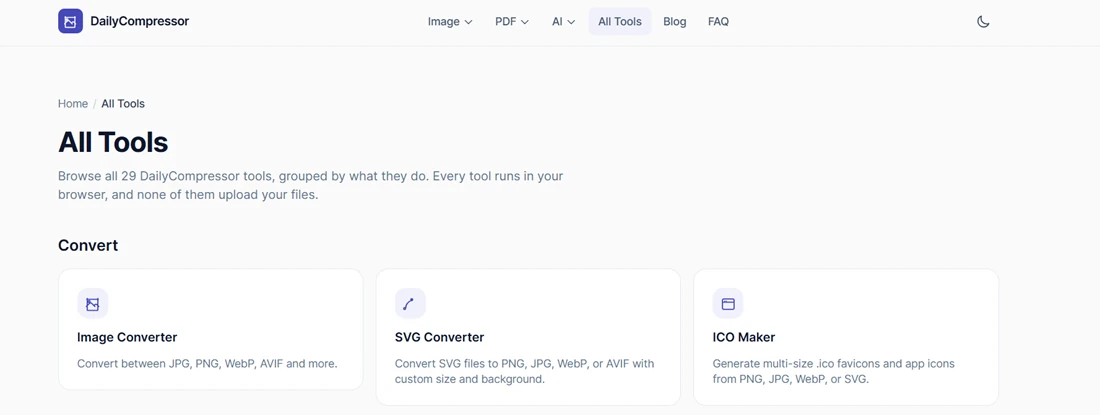
DailyCompressor offers 29 free tools in six categories: Convert, Edit, Resize, Compress, AI, and Extract. Every tool is free, with no sign-up required, no watermark on the output, and no daily limit.
DailyCompressor (29 tools)
├── Convert (14)
│   ├── Still images: Image Converter, SVG Converter, ICO Maker
│   ├── Animation: GIF Maker, GIF Frame Extractor, GIF to WebP, GIF to MP4
│   ├── Images and PDF: Image to PDF Converter, PDF to JPG Converter
│   ├── PDF pages: Merge PDF, Split PDF, Rotate PDF
│   └── Documents: PDF to Word, Word to PDF
├── Edit (7)
│   ├── Photo edits: Image Cropper, Rotate & Flip, Watermark, Black & White Image Converter
│   ├── Photo privacy: EXIF Viewer & Remover
│   └── PDF stamping: Watermark PDF, Page Numbers PDF
├── Resize (1): Image Resizer
├── Compress (3): Image Compressor, GIF Optimizer, Compress PDF
├── AI (3): AI Background Remover, AI Image Upscaler, AI Watermark Remover
└── Extract (1): Image to Text (OCR)| Category | Tools | Typical jobs |
|---|---|---|
| Convert | 14 | HEIC to JPG, PDF to Word, GIF to MP4, merging PDFs |
| Edit | 7 | Cropping for social posts, removing GPS data, numbering PDF pages |
| Resize | 1 | Exact pixel sizes for websites and forms |
| Compress | 3 | Smaller email attachments and faster web pages |
| AI | 3 | Product cutouts, sharper old photos, cleaner images |
| Extract | 1 | Copying text from screenshots and scans |
Convert is the largest group because most file jobs start with the wrong format. The next five sections cover each category in the order people usually need them.
Free Image Conversion Tools That Run in Your Browser
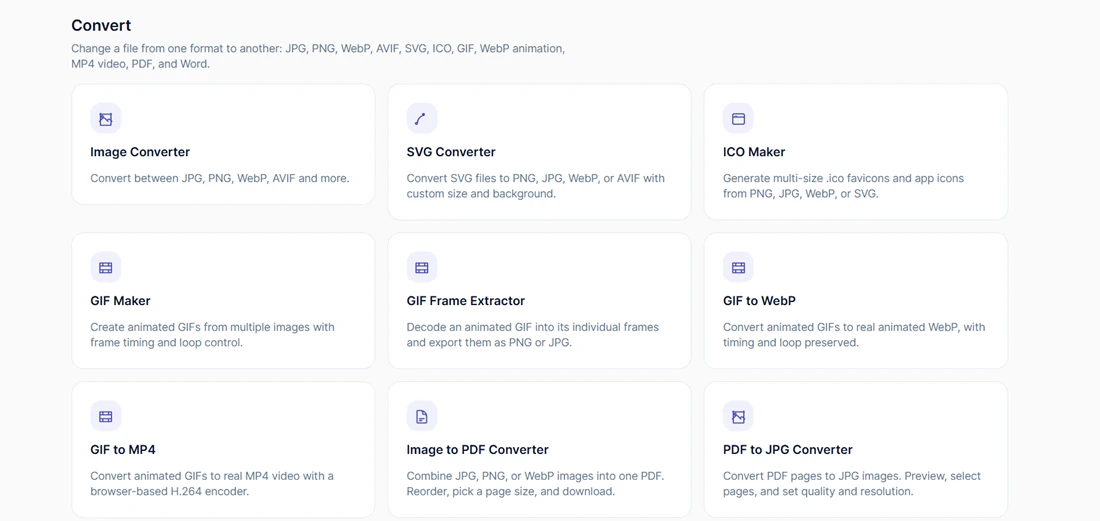
DailyCompressor converts still images and animations between common web formats inside your browser, with no upload and no signup. Convert has 14 tools; the seven image and animation tools are below, and the PDF tools follow in the next section.
Still Image Formats: JPG, PNG, WebP, AVIF, HEIC, SVG, ICO
Image Converter, SVG Converter, and ICO Maker change still images from one format to another on your device.
| Tool | Reads | Writes |
|---|---|---|
| Image Converter | JPG, PNG, WebP, AVIF, GIF, BMP, TIFF, ICO, HEIC | JPG, PNG, WebP, AVIF |
| SVG Converter | SVG | PNG, JPG, WebP, AVIF |
| ICO Maker | PNG, JPG, WebP, SVG | Multi-size .ico favicon |
Image Converter handles batch conversion of up to 20 files at 25 MB each, with a quality setting for lossy formats and a ZIP download. SVG Converter sanitizes each SVG before rendering, so hidden scripts in the file never run. ICO Maker keeps transparency from PNG, WebP, and SVG sources.
Animation: GIF, Animated WebP and MP4
GIF Maker, GIF Frame Extractor, GIF to WebP and GIF to MP4 build, split and convert animations locally.
| Tool | What it does | Key detail |
|---|---|---|
| GIF Maker | Builds a GIF from JPG, PNG, or WebP frames | Frame order, timing, and loop settings |
| GIF Frame Extractor | Saves every frame as PNG or JPG | One frame or a ZIP of all frames |
| GIF to WebP | Converts to animated WebP | Timing and loop count kept |
| GIF to MP4 | Converts to H.264 MP4 with FFmpeg | Encoder downloads once, then cached |
GIF dates to 1987 and still limits each frame to 256 colors, which is why GIF files run large. Animated WebP and MP4 store the same motion in far fewer bytes. MP4 has no transparency, so GIF to MP4 fills transparent areas.
Free PDF Tools That Don't Upload Files
DailyCompressor converts, merges, splits, and rotates PDFs in your browser, so no document reaches a server. Each tool works as a free PDF converter with no signup, no page credits, and no watermark on the output.
PDF has a long history behind it. Adobe released the format in 1993, and it became the open standard ISO 32000 in 2008. That standard structure lets a browser read and rebuild pages without special software.
Images to PDF and PDF to Images
Image to PDF Converter turns photos into one PDF, and PDF to JPG Converter turns each page back into an image.
Image to PDF Converter accepts up to 20 JPG, PNG, or WebP images at 25 MB each. You choose A4, Letter, or Auto page size, the orientation, the margin, and whether images fit or stretch to the page.
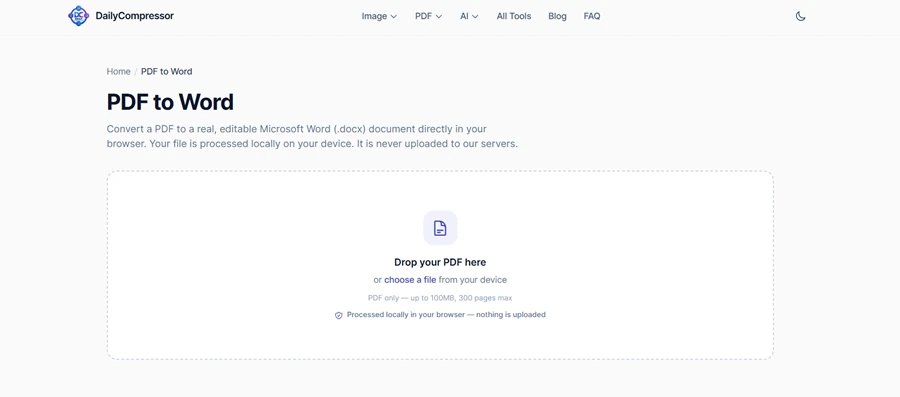
Image to PDF ConverterPDF to JPG Converter reads PDFs up to 100 MB and 300 pages. You preview pages, pick the ones you need, set JPG quality and resolution, and download a ZIP.
PDF to JPG ConverterPage Tools: Merge, Split, and Rotate
Merge PDF, Split PDF, and Rotate PDF copy pages as they are, without re-rendering text or images.
| Tool | What it does | Limit |
|---|---|---|
| Merge PDF | Combines PDFs in the order you drag them | 20 files, 50 MB each |
| Split PDF | Extracts pages, ranges, or every page | 100 MB, 2,000 pages |
| Rotate PDF | Turns one, some, or all pages in 90-degree steps | 100 MB, 2,000 pages |
Because the pages are copied, text stays sharp and quality never drops. Merge PDF also keeps mixed page sizes as they are.
Documents: PDF to Word and Word to PDF
PDF to Word extracts the text layer into a .docx file, and Word to PDF converts .docx files up to 50 MB.
PDF to Word checks the text layer before converting, so it can tell you when a page is only a scan. A scanned page holds a picture of text, not text, so run it through Image to Text first. The output opens in Word, Word Online, and LibreOffice.
PDF to WordWord to PDF keeps tables, images, lists, bold, italics, and colors, and the PDF has real selectable text. It accepts .docx only, not older .doc files.
Word to PDFFree Editing Tools for Photos and PDFs on Your Device
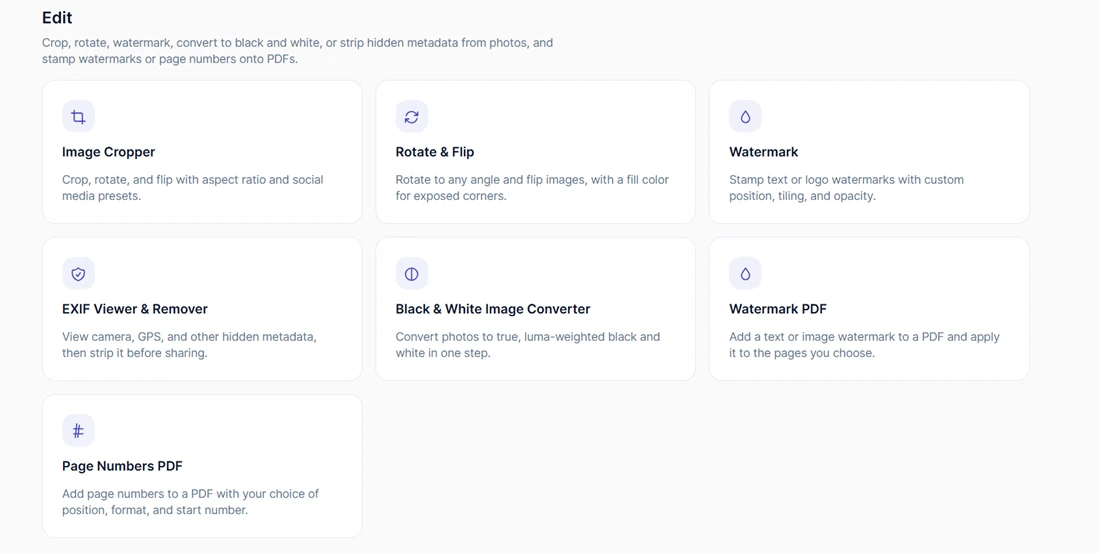
DailyCompressor edits photos and stamps PDFs on your device with seven free editing tools. Four change how a photo looks, one protects your privacy, and two mark up PDF pages.
Photo Edits: Crop, Rotate, Watermark and Black and White
Image Cropper, Rotate & Flip, Watermark, and Black & White Image Converter change how a photo looks.
| Tool | What it does |
|---|---|
| Image Cropper | Crops at full resolution with 1:1, 4:3, 3:2 and 16:9 ratios, plus Instagram Square (1080x1080), Story (1080x1920) and YouTube Thumbnail (1280x720) presets |
| Rotate & Flip Image | Rotates to any exact degree and flips horizontally or vertically |
| Image Watermark | Adds text or a logo with position, tiling, and opacity, across a batch of 20 |
| Black & White Image Converter | Creates a luma-weighted grayscale copy at the same size |
Among crop image tools, presets save the most time, because social platforms reject or recrop images with the wrong ratio.
Photo Privacy: EXIF and GPS Data
EXIF Viewer & Remover shows and deletes hidden photo metadata, including GPS location, before you share a picture.
Most phone photos carry the date, the camera model, and when location is on, the exact spot where you took them. You can remove GPS location from photos before sharing and save a clean copy in one step. The tool reads JPG, PNG, and WebP.
EXIF Viewer & RemoverPDF Stamping: Watermarks and Page Numbers
Watermark PDF and Page Numbers PDF add text to every page of a PDF without uploading it.
Watermark PDF places a text or image watermark with your chosen position, rotation, and pages, and writes it into the page content. Page Numbers PDF sets the format, position, and starting number, can skip a cover page, and numbers rotated pages upright.
Watermark PDFFree Resize and Compress Tools That Shrink Files Locally
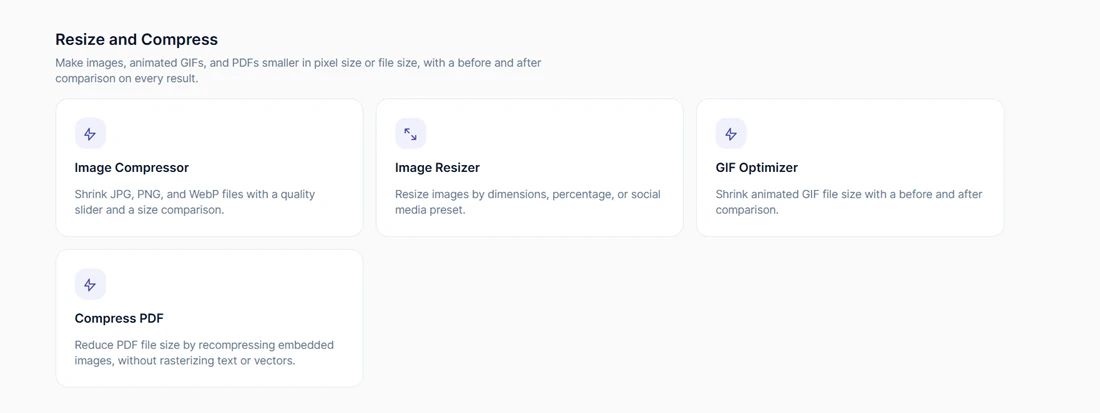
DailyCompressor shrinks images, GIFs, and PDFs locally with one resize tool and three compress tools. Each tool makes a different part of the file smaller.
| Tool | What gets smaller | How you control it |
|---|---|---|
| Image Resizer | Pixel dimensions | Exact pixels, a percentage, or a social preset |
| Image Compressor | Bytes per image | A quality slider, with before and after sizes |
| GIF Optimizer | Colors and repeated frames | Palette reduction, duplicate-frame removal, optional resize |
| Compress PDF | Images inside the PDF | Recommended, Strong, or Maximum |
Resizing and compressing solve different problems. Resizing lowers the pixel count, which helps when a form or website asks for set dimensions. Compression keeps the dimensions and lowers the file size.
Compress PDF recompresses embedded images only. Text and vector graphics are never turned into pictures, so they stay sharp and searchable at every level.
Two honest notes help you pick settings. Image Compressor works by quality, not by a target file size, so check the before and after numbers it shows. Image Resizer can enlarge an image, but enlarging only stretches existing pixels; the AI Image Upscaler adds real detail instead.
All four tools handle batches, and the image tools take up to 20 files at once. GIF Optimizer keeps frame timing intact, so the animation plays at the same speed after optimization.
Free AI and OCR Tools That Run On Your Device
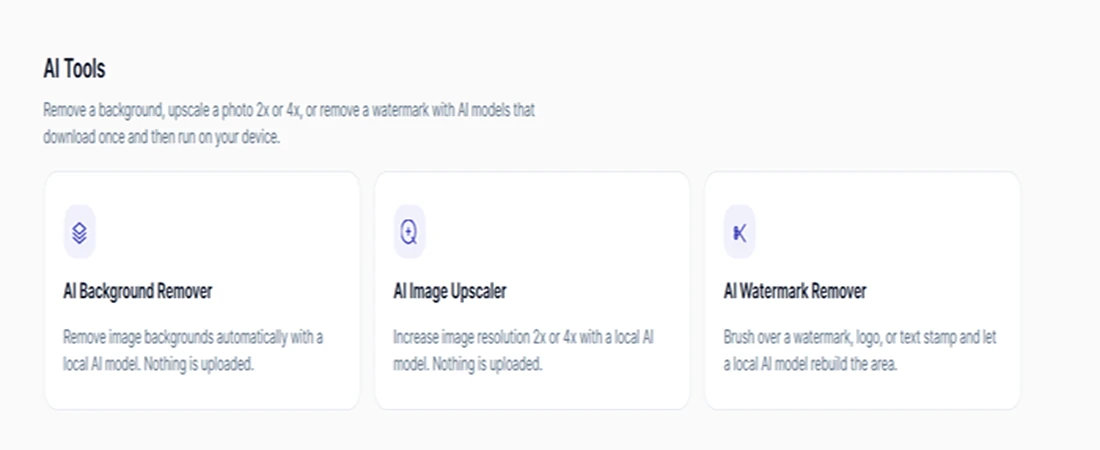
DailyCompressor runs three AI tools and one OCR tool on your device after a one-time model download. GIF to MP4 follows the same pattern with its video encoder.
| Tool | Model or engine | One-time download |
|---|---|---|
| AI Background Remover | On-device segmentation model | A few MB |
| AI Image Upscaler | Real-ESRGAN, 2x or 4x | About 64 MB per scale |
| AI Watermark Remover | MI-GAN inpainting | About 28 MB |
| Image to Text (OCR) | Tesseract in WebAssembly, English and Urdu | A few MB |
| GIF to MP4 | FFmpeg in WebAssembly, H.264 | A few MB |
A model download moves data to your device, never from it. Your browser caches each model, so the next run starts without a second download.
- AI Background Remover cuts out the subject, then lets you switch between transparent, white, black, or a custom background without running the AI again.
- AI Image Upscaler enlarges a photo 2x or 4x and rebuilds detail with Real-ESRGAN. A job takes seconds to a couple of minutes, with a before-and-after zoom and a cancel button.
- AI Watermark Remover rebuilds only the pixels you paint with the brush, using MI-GAN inpainting. It works on photos, not PDFs, and it is meant for images you own or have a licence to edit.
- Image to Text reads English and Urdu with Tesseract and gives you editable text to copy or save as .txt. Straighten tilted photos first, because the tool does not rotate text.
Download sizes matter on mobile data. The Upscaler model is the largest at about 64 MB per scale, so fetch it on Wi-Fi the first time. The other models are small enough for any connection.
On-device AI has a clear privacy benefit. Photos of faces, products, and documents stay on the device that took them.
File Limits for Every DailyCompressor Tool
DailyCompressor accepts images up to 25 MB, 20 per batch, and PDFs up to 100 MB or 2,000 pages.
| Tool group | Max file size | Max files or pages |
|---|---|---|
| Image tools (convert, edit, resize, compress, AI, OCR) | 25 MB per file | 20 files per batch |
| GIF Frame Extractor | 25 MB | 1 GIF at a time |
| Image to PDF Converter | 25 MB per image | 20 images |
| Split, Rotate, Compress, Watermark and Page Numbers PDF | 100 MB | 2,000 pages |
| PDF to JPG Converter and PDF to Word | 100 MB | 300 pages |
| Merge PDF | 50 MB per file | 20 files |
| Word to PDF | 50 MB | .docx files only |
These limits exist because your browser, not a server, does the work. Each tab has a memory budget, and the caps keep jobs inside it on most phones and laptops.
Password-protected PDFs are not supported in any PDF tool. Remove the password in your PDF reader first, then open the file in DailyCompressor.
How to Check That a Tool Never Uploads Your File
You can confirm that a tool never uploads your file by watching the browser's Network tab while the tool runs. The test takes about a minute and works on any website.
- Open a DailyCompressor tool on a desktop browser.
- Press F12 (or right-click and choose Inspect), then open the Network tab.
- Clear the list so you start from zero.
- Add your file and run the tool.
- Sort the requests by size and look for one close to your file's size.
- Download the result and check the list again.
On DailyCompressor, no request carries your file. You see the page's own scripts and, for the five model tools, the model arriving on first use.
The Offline Test
A second test needs no developer tools. Load a tool, turn off Wi-Fi or switch on airplane mode, then run the job. If the tool finishes, the work happened on your device, because there was no connection to send anything through.
For the AI tools, run each one once while online so the model downloads and caches first.
What This Test Tells You About Any Tool
The same steps work on every online converter you try. A large outgoing request during processing means the file left your device, whatever the page promises. DailyCompressor invites the check because the result is the proof.
Where Browser-Based Tools Reach Their Limits
Browser-based tools trade some speed and memory for privacy, so very large files run slower than they do in desktop software. Local processing moves the work to your hardware, and your hardware sets the pace.
A 2019 USENIX study by researchers at the University of Massachusetts Amherst measured WebAssembly at 1.45x slower than native code in Firefox and 1.55x slower in Chrome on average. Peak slowdowns reached 2.08x and 2.5x.
2019 USENIX studyMemory matters as much as speed. A browser tab gets a share of your device's memory, and phones have far less than laptops. A 4x upscale or a 300-page PDF to JPG job can take noticeably longer on an older phone.
For everyday jobs, the gap is a few seconds. A few habits keep large jobs smooth:
- Close other heavy tabs before a big batch.
- Use a laptop for 4x upscales and long PDFs.
- Split very large PDFs, then process the parts.
- Plug in your phone before a long AI job, because it keeps the processor busy.
These limits are the honest cost of keeping files local. DailyCompressor sets its caps so most devices finish the job instead of freezing.
Real Jobs That Chain DailyCompressor Tools
DailyCompressor tools chain together, so one file can pass through several tools without leaving your device. Each output becomes the next input.
1. Phone scan to a small PDF for an email or form
- Trim the edges in Image Cropper.
- Combine the pages in Image to PDF Converter, A4, small margin.
- Shrink the scanned PDF with Compress PDF on Recommended.
2. iPhone photos to a single PDF
- Convert iPhone HEIC photos to JPG in one batch.
- Add the JPGs to Image to PDF Converter and set the order.
3. Web-ready images for a blog or shop
- Set the width in Image Resizer, for example, 1200 pixels.
- Lower the size in Image Compressor and check the before and after numbers.
- Strip camera and GPS data with EXIF Viewer & Remover.
4. Scanned PDF to editable text
- Turn the pages into images with PDF to JPG Converter.
- Pull text from scanned pages with on-device OCR, page by page.
- Paste the text into your document and check names and numbers.
Keep the browser tab open between steps. A file you download from one tool can go straight into the next, and nothing is saved anywhere else along the way. For workflow 4, OCR accuracy improves when the page image is sharp, so pick a higher resolution in PDF to JPG.
Each chain stays on one device from start to finish, so sensitive documents never touch a server at any step.
What DailyCompressor Does Not Do Yet
DailyCompressor does not yet edit PDF text, sign documents, fill forms, redact content or remove passwords. Knowing the gaps saves you time.
- Editing existing text inside a PDF
- Signing PDFs or adding signature fields
- Filling or creating fillable PDF forms
- Redacting sensitive content
- Opening, adding or removing PDF passwords
- PDF to Excel and PDF to PowerPoint
- MP4 to GIF and WebP to GIF
- Turning raster images into vectors
- Inverting image colors
If you need one of these features, use a trusted desktop PDF editor for that single step, then return to DailyCompressor for the rest of the job. Never upload a sensitive file to an unknown site just to fill one gap.
The toolkit grows over time, and this list reflects the toolkit as of 2026. Every tool listed in this guide works today.
Local Processing vs Upload-Based Tools: The Practical Difference
Local processing keeps your file on your device, while upload-based processing sends it to a server that stores it for a set time. When you compare the best free PDF converters, ask one question first: where does the file go?
| Attribute | Local processing (DailyCompressor) | Upload-based tools |
|---|---|---|
| Where the work happens | Your browser, on your device | A remote server |
| File transfer | None | Every file, both ways |
| Storage after processing | None | A stated window, often 1 to 2 hours |
| Account or signup | Not needed | Often required for full use |
| Daily limits | None | Common on free plans |
| Proof of privacy | Network tab and offline test | A written policy |
| Large-file speed | Depends on your device | Depends on the server and your upload speed |
| Works without a connection | Yes, once the page and any model load | No |
Upload-based tools still suit very large jobs on weak devices. For everyday images and PDFs, local processing gives the same result without the copy on someone else's computer.
Frequently Asked Questions
Can DailyCompressor open files stored in iCloud Drive or other cloud storage?
Yes, if your device can open the file. On iPhone, the Files app lists iCloud Drive, and on desktop you can pick a synced folder. DailyCompressor reads the local copy your device provides and never connects to your cloud account.
Are no-upload tools a good fit for GDPR-sensitive work files?
They reduce risk because no personal data in the file is transferred or stored by the tool. DailyCompressor processes files on your device, which aligns with the GDPR data minimisation principle. Your organisation's own retention and device policies still apply.
Is it safe to use DailyCompressor on a shared or public computer?
Yes, with one habit. DailyCompressor keeps nothing online, but downloaded results land in that computer's Downloads folder. Delete your outputs and originals before leaving, and use a private window so cached files and history clear when it closes.
Should I install software to convert files for free?
No. Installers from unknown converter sites can carry malware, which the FBI Denver Field Office warned about in March 2025. DailyCompressor needs no installation: every tool runs as a web page, and five tools download a cached model.
Does a no-upload tool protect me from malware inside a PDF?
Not by itself. A no-upload tool keeps your file private, but it cannot clean a malicious PDF. DailyCompressor adds nothing to files; rebuilding untrusted pages as images with PDF to JPG and Image to PDF removes scripts and links.
How is a browser tool different from a desktop app that also works offline?
Both process files locally, but a browser tool needs no installer, admin rights or updates. DailyCompressor runs inside the browser sandbox, so it cannot read other files on your computer, only the ones you choose.