The Complete Guide to Converting PDF to Word Without Losing Formatting
How do I convert a PDF to Word without losing formatting? This guide explains why layouts shift, gives five steps, grades results for eight document types and shows the OCR route for scanned PDFs.
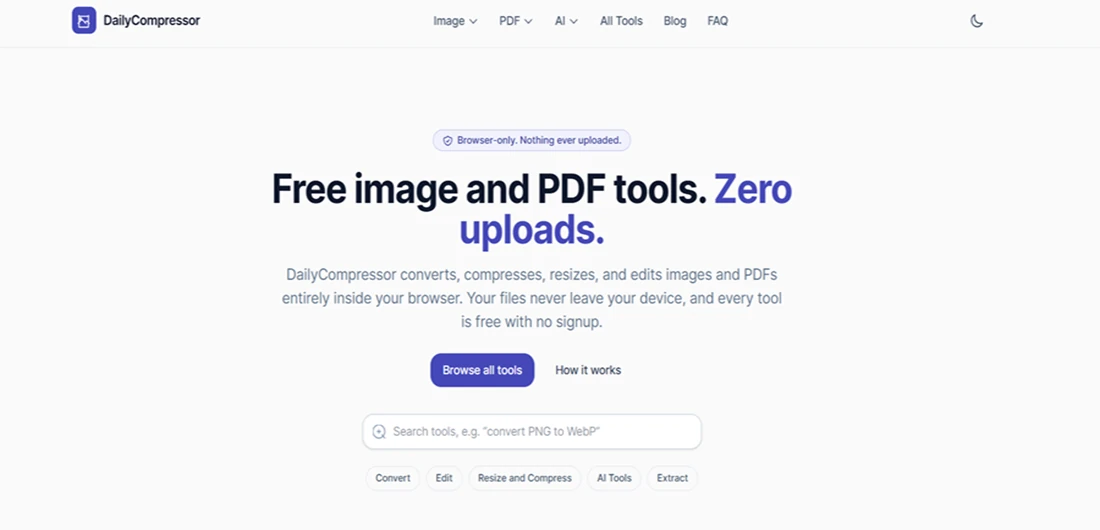
How do I convert a PDF to Word without losing formatting? Use a converter that reads the PDF's text layer, and run scanned pages through OCR first. DailyCompressor's PDF to Word tool builds an editable .docx inside your browser, free and without uploading your file.
Text-based PDFs convert closely, while tables, columns, and fonts need a quick check. Scanned PDFs hold pictures of text, so they need a different route.
The tool handles PDFs up to 100 MB and 300 pages, and this guide shows what to expect from each document type.
How Converting PDF to Word Rebuilds Your Document
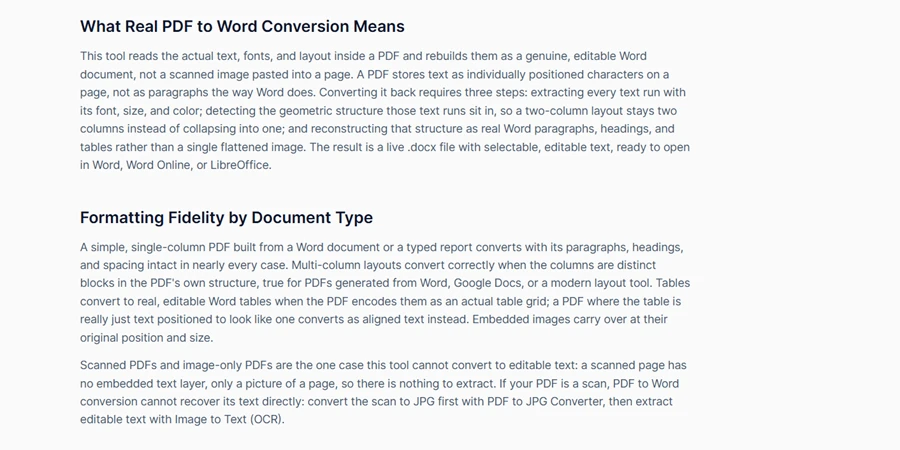
Converting PDF to Word rebuilds your document, because a PDF stores characters at fixed positions while Word stores paragraphs, styles, and tables. The two formats were built for different jobs. PDF fixes how a page looks, and Word lets text flow and change.
Adobe launched PDF on 15 June 1993, and Adobe now estimates there are more than 3 trillion PDF files in the world. PDF became the open standard ISO 32000 in 2008. Word's .docx file follows a different standard, Office Open XML (ISO/IEC 29500), which stores text as paragraphs and styles inside a ZIP of XML files.
Text-Layer PDFs vs Scanned PDFs
A text-layer PDF holds real characters, while a scanned PDF holds only a picture of each page. You can tell them apart in five seconds by trying to select a line of text.
If the line highlights, the PDF has a text layer and converts well. If nothing highlights, the file is a scan and needs OCR.
What a Converter Has to Rebuild
A converter rebuilds paragraphs, headings, lists, tables, and columns from the position of each character. The PDF records where each letter sits, not which letters form a paragraph or a table cell. Tagged PDFs, the kind built for screen readers, carry extra structure that makes this easier.
Copy and paste can transport PDF to Word text, but it drops most of the structure. The UK Government Digital Service put it plainly: "It can be very difficult to reuse content from a PDF by copy and pasting it."
Government Digital Service: why GOV.UK content should be published in HTML and not PDFEven Microsoft notes that a PDF opened in Word "may not look exactly like the original." So whenever you convert PDF to Word format, aim for a close match, then check it.
Microsoft Support on opening PDFs in WordHow Do I Convert a PDF to Word Without Losing Formatting?
To convert a PDF to Word without losing formatting, use a converter that reads the PDF's text layer, then check tables, fonts and columns in the .docx. Text-based PDFs convert closely. Scanned PDFs need OCR first, because they contain no real text.
Here is how to convert a PDF to Word in five steps:
- Open DailyCompressor's tool to convert your PDF to Word in your browser.
- Add your PDF, up to 100 MB and 300 pages.
- Let the tool analyse the text layer, which shows whether the pages contain real text.
- Download the result. When you convert a PDF to a Word file format here, you get a real .docx.
- Open the .docx in Word and check tables, fonts and page breaks.
The same five steps work whether you convert PDF to Word doc files for a CV, a contract or a school report.
Two Checks Before You Convert
Before you ask how to convert a PDF to a Word document, test the PDF itself:
- Select test: if you cannot highlight any text, the file is a scan. Use the OCR route below.
- Copy test: if copied text pastes as symbols, the fonts lack a Unicode map. Any converter will show the same symbols.
DailyCompressor converts the file on your device, so CVs and contracts never reach a server. The tool belongs to a set of free PDF tools that never upload your files.
Free PDF tools that never upload your filesDailyCompressor
├── Convert
│ ├── Documents: PDF to Word, Word to PDF
│ └── Images and PDF: PDF to JPG Converter, Image to PDF Converter
└── Extract
└── Image to Text (OCR)PDF to Word Document Results by Document Type
PDF to Word document results depend on how the original PDF was built, not on the converter alone. A one-page letter and a two-column research paper ask very different things of the same tool.
The table shows what to expect from DailyCompressor's PDF to Word tool for eight common document types.
| Document type | Expected result | What to check |
|---|---|---|
| Letter or plain text | Close match | Line breaks |
| CV with styled sections | Close match; spacing may shift | Fonts and bullet indents |
| Report with headings and lists | Close match | Heading styles and numbering |
| Two-column paper | Text kept; reading order may need fixing | Column flow |
| Table with ruled borders | Rebuilt as a Word table | Merged cells |
| Borderless table | May come out as spaced text | Column alignment |
| Form with fields | Field values become plain text | Checkboxes |
| Scanned page | No editable text | Use the OCR route |
- Simple documents convert best. Letters, CVs, and reports are mostly running text with clear headings, so the converter has little to guess. Spacing and bullet indents may shift slightly, which takes a minute to fix.
- Columns are harder. A two-column page places two lines side by side at the same height. Layout analysis methods, such as the recursive XY-cut technique George Nagy and Sharad Seth described in 1984, split a page into blocks by its white space. Narrow gutters can confuse that split, so check that each column reads from top to bottom.
- Scientific and patent documents are the hardest. A 2024 study of 10 PDF parsers across six document categories found that every tool struggled with scientific papers and patents, because of equations and drawings. If you are asking how to convert a PDF to Word for a dense paper, expect to tidy equations by hand.
Knowing how to convert a PDF to a Word document is half the job. Knowing which rows above need a second look is the other half.
How Tables Convert From PDF to DOCX Format
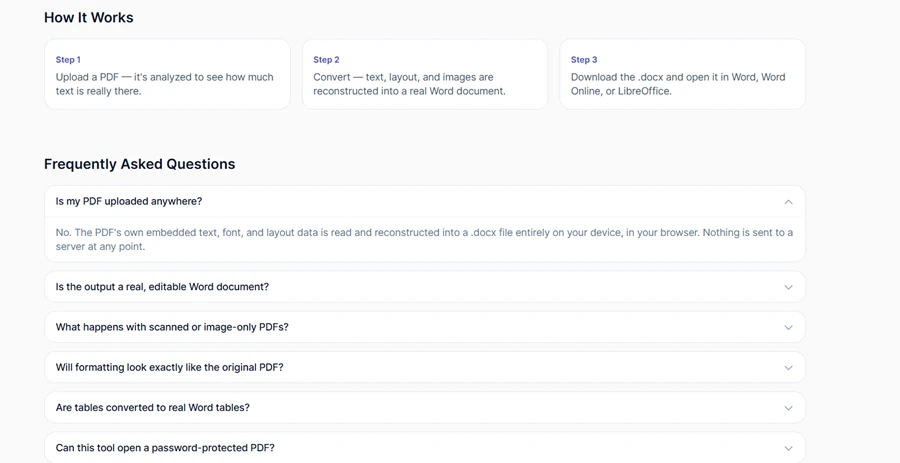
Tables with visible ruled borders convert to editable Word tables most reliably, while borderless tables often come out as spaced text. A PDF has no table object, only lines and text placed near each other. The converter has to infer the grid.
Researchers see the same pattern. In a 2024 comparative study, table detection was the weakest step for rule-based PDF parsers. Failures clustered around tables without clear borders, nested tables, and color-based layouts.
2024 comparative study| Table type | What to expect in the .docx | Quick fix |
|---|---|---|
| Ruled borders, simple grid | Word table with matching rows and columns | Check column widths |
| Merged cells | Merged cells may split apart | Merge them again in Word |
| Borderless, aligned by spaces | Text separated by tabs or spaces | Use Word's Convert Text to Table |
| Table across two pages | Two separate tables | Delete the gap to join them |
| Colored rows instead of lines | Grid may be lost | Add borders in Word |
Every conversion of PDF to DOCX meets this problem, because the gap between the PDF to DOCX format pair is structural, not a fault in one tool.
How Fonts, Images, Headers and Footers Convert to Word
Fonts, images, headers, and footers convert best when the PDF embeds its fonts and stores images as separate objects. Most PDFs exported from Word or a design app do both. Older files and pages printed to PDF are more mixed.
| Element | What happens | What to do |
|---|---|---|
| Embedded font you also have installed | Kept as is | Nothing |
| Font missing on your device | Word substitutes a similar font | Install the font or pick a replacement |
| Font without a Unicode map | Symbols appear instead of letters | Use the OCR route |
| Images | Placed near their original position | Check text wrapping |
| Headers, footers and page numbers | May land in the body text | Move them into Word's header area |
Font substitution is the most common surprise. When the PDF uses a font your device lacks, Word swaps in the closest match, and line breaks and page counts can move. Learning how to convert PDF to Word format well mostly means checking fonts first.
Headers and footers carry no special label in most PDFs. They are simply text that repeats near the top or bottom of each page, so a converter may treat them as body text.
How to Convert a Scanned PDF to a Word Document
A scanned PDF converts to an editable Word document only after optical character recognition (OCR) turns each page image into text. DailyCompressor's PDF to Word tool cannot read text from a scan. Two other DailyCompressor tools handle it:
- Turn scanned pages into images with PDF to JPG, up to 300 pages per file.
- Pull editable text from scans with Image to Text, which reads English and Urdu.
- Paste the text into a new Word document.
- Add headings, then check names, dates, and numbers.
This is how to convert PDF to Word document text when the file started life on paper. Both tools run in your browser, so the scan stays on your device.
Where Your PDF to Word Doc Opens and What to Check First
The converted .docx opens in Microsoft Word, Word Online, and LibreOffice Writer with no extra plugins. Google Docs opens it too. Before you edit or send the file, run a five-point check:
- Headings: do they use heading styles?
- Tables: are the rows and columns right?
- Fonts: do they match, or is the substitute close enough?
- Page breaks: do they fall where you expect?
- Headers and footers: do they sit in Word's header and footer areas?
This check is how to convert PDF to Word doc files you can trust. If you need the older format and wonder how to convert PDF to DOC, open the .docx in Word and save it as .doc.
When your edits are done, you can convert the edited Word file back to PDF. DailyCompressor's Word to PDF tool accepts .docx files up to 50 MB.
Convert the edited Word file back to PDFPDF to Word Limits: File Size, Pages and Passwords
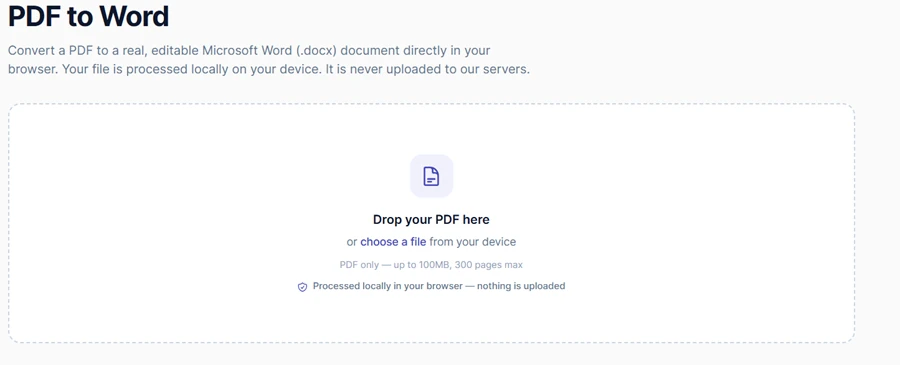
DailyCompressor's PDF to Word tool converts PDFs up to 100 MB and 300 pages. It does not open password-protected files. These limits keep the conversion inside your browser's memory on most laptops and phones.
- More than 300 pages: split the long PDF into parts with Split PDF, then convert each part.
- Password-protected: remove the password in your PDF reader, if you own the file or have permission.
- Excel or PowerPoint needed: PDF to Word conversion outputs .docx only. DailyCompressor does not convert PDFs to Excel or PowerPoint yet.
Frequently Asked Questions
How do you convert a PDF to Word for free?
Open DailyCompressor's PDF to Word tool, add a PDF up to 100 MB, and download the .docx. The tool is free, needs no signup, adds no watermark, and converts the file inside your browser without uploading it.
Is a .docx file the same as a Word doc?
Yes, for modern Word. Word has saved documents as .docx, the Office Open XML format, since Word 2007; .doc is the older binary format. DailyCompressor's PDF to Word tool outputs .docx, which opens in Word, Word Online, and LibreOffice.
Can I convert a PDF to Word on my phone?
Yes. DailyCompressor's PDF to Word tool runs in mobile browsers such as Safari and Chrome, so no app is needed. Phones have less memory than laptops, so long PDFs near the 300-page limit convert faster on a computer.
Is it safe to convert a PDF to Word online?
It is safe when the file never leaves your device. Many online converters upload your PDF to a server first. DailyCompressor builds the .docx inside your browser, so contracts, CVs and payslips stay on your computer or phone.
Can you convert a PDF to Word inside Microsoft Word?
Yes. Word 2013 and later open PDFs through PDF Reflow, which is how to save a PDF as a Word document without a converter. Microsoft notes the result may differ. DailyCompressor's PDF to Word tool works without a Word licence.
Can I convert a password-protected PDF to Word?
Not directly. DailyCompressor's PDF to Word tool does not open password-protected PDFs. Remove the password in your PDF reader first, if you own the file or have permission, then convert the password-free copy into an editable .docx file.